Set up Conference Callbacks Using CarrierX Portal
Most of the events associated with your partner account and your rented phone numbers (DIDs) can send callbacks. You can specify URL addresses where you have some service installed which can process these callbacks.
The callbacks contain the detailed data about the event. The data depends on the event that triggers the callback.
You can set callback URLs for four main events:
- When sending or receiving a text message (SMS or MMS),
- When making a call that engages a Mediator endpoint,
- Two events for receiving a call to a Conference endpoint: one for a conference Call object and another for a conference Meeting object,
- And when you are ordering a phone number from an external provider and you wish to be informed when such a phone number has been ordered successfully.
In this quick start guide, we will configure callback behavior for Conference endpoints.
Navigate to Callbacks Tab
What you need before you start
- Register with CarrierX to access the API and CarrierX portal.
- Rent a phone number from CarrierX.
- Create a Conference endpoint and associate it with the rented phone number.
You can set the Conference callbacks in the Callbacks tab of the Global Settings section of CarrierX portal.
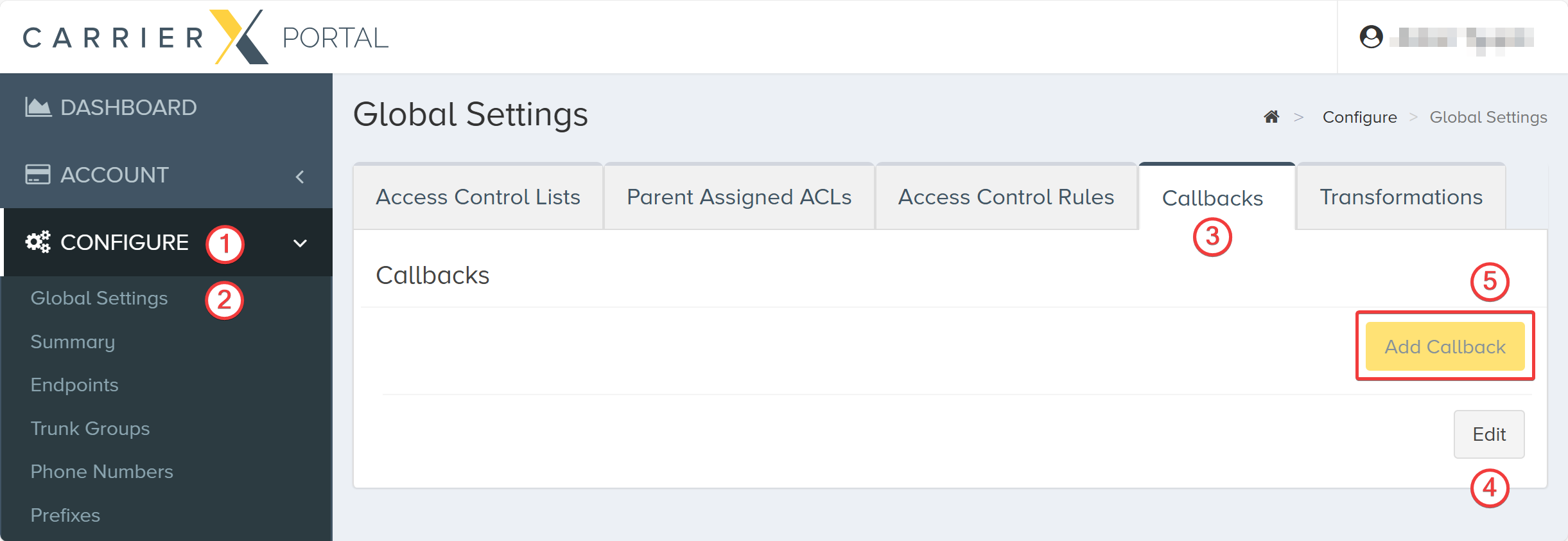
To get there, log in to the portal. On the left-side menu, locate and click the CONFIGURE menu item (1). Go to Global Settings (2).
Select the Callbacks tab (3) and click the Edit button (4) and then the Add Callback button (5), which becomes enabled.
Now you can select the event type that will trigger the callback and enter the URLs for your selected callbacks.
Create Callbacks for Conference
There are two callback event types for Conference:
-
The Conference endpoint call callback will be sent when a user calls into a conference associated with the partner account. The system sends this callback to the URL specified even before the user enters the conference meeting room once a real-time Call object is created.
-
The Conference endpoint meeting callback will be sent when a user enters a meeting room and the meeting starts. The system sends this callback to the URL specified when a real-time Meeting object is created.
Select each callback event type (1) from the list, enter the URL (2) to your web service that will process the callback (e.g., https://example.com/conference-callback-url), and click the Update button (3) to save the results.
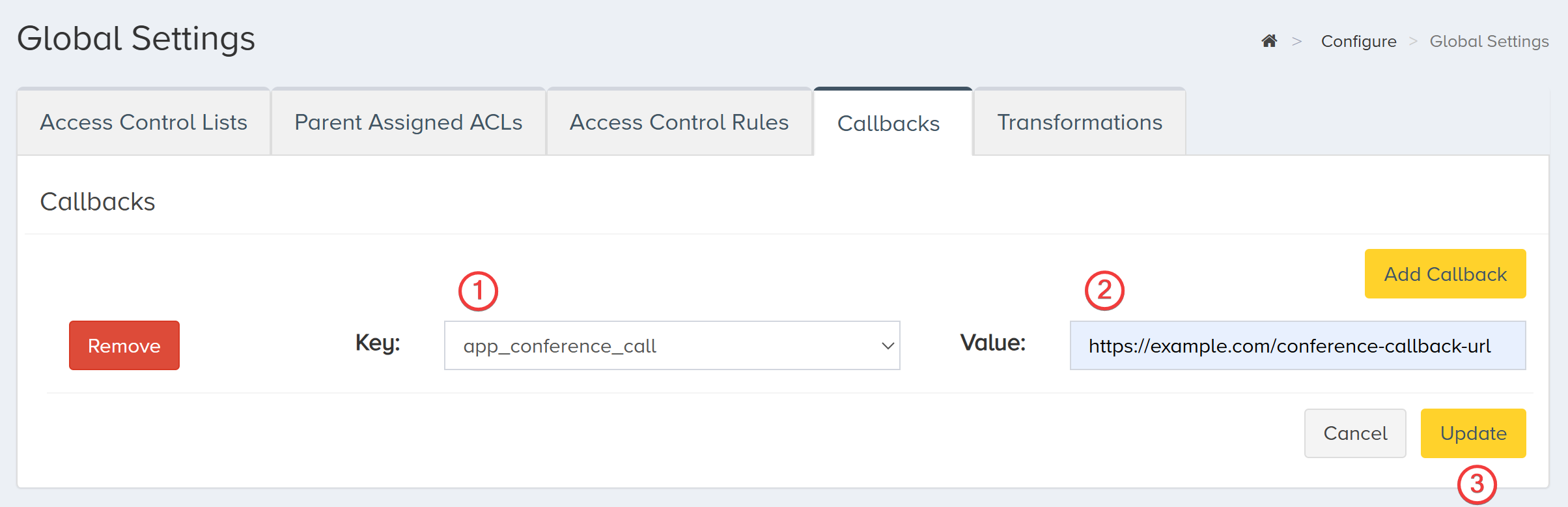
The new callback will appear in the list of available callbacks.
Typical Conference Event Flow
- A caller dials a phone number associated with a Conference endpoint.
- The conference system establishes a connection and creates a real-time Call object for that participant.
- When this occurs, CarrierX sends the
app_conference_callcallback to your specified URL.
- When this occurs, CarrierX sends the
- If the caller successfully enters the conference room, the system creates a Meeting object that represents the ongoing session.
- At this point, CarrierX sends the
app_conference_meetingcallback.
- At this point, CarrierX sends the
- Additional participants joining the same meeting each trigger their own
app_conference_callcallbacks. - When the meeting ends and all participants disconnect, CarrierX sends the final status updates for both the call and meeting objects.
Receive and Parse App Conference Call Object
Now if you use the Conference endpoint and call the phone number associated with it, your service located at the URL you entered will receive the callback like this:
{
    "address_dst": "\\"15162065515\\" \\u003csip:15162065515@11.22.33.44\\u003e",
    "address_src": "\\"1234\\" \\u003csip:+17605692222@12.34.56.78",
    "bridge": "conference-bridge",
    "call_sid": "69057c3e-bb90-4ed3-9c53-000000001090",
    "custom_call_type": "foreign",
    "custom_name": "\\u00271234\\u0027",
    "date_disconnected": "2021-12-14T07:08:01.000Z",
    "date_insert": "2025-06-14T07:40:27.706Z",
    "date_join": "2025-06-14T07:07:31.000Z",
    "date_start": "2025-06-14T07:07:09.000Z",
    "date_stop": "2025-06-14T07:08:01.000Z",
    "direction": "inbound",
    "disconnect_cause": 16,
    "disconnect_originator": "src",
    "disconnect_reason": "Normal",
    "duration": 50,
    "duration_meeting": 30,
    "endpoint_sid": "e3ddc435-7b07-4f3a-98d5-4fe9be107652",
    "meeting_room_sid": "f752b4a5-b821-4322-a26f-db5cfbf014ab",
    "meeting_sid": "69057c3e-bb90-4ed3-9c53-000000000373",
    "node": "11.22.33.44",
    "number_dst": "15162065515",
    "number_src": "+17605692222",
    "partner_sid": "cee93bf3-5746-43fe-a1a2-822c05fef687",
    "role": "participant",
    "user_agent": "CX-IVS-SBC"
}
You can now parse it and use for your own purposes.
App Conference Call Fields
The object in the callback has the following fields.
| Attribute | Data Type | Description |
|---|---|---|
| address_dst | string | Fully-qualified address of the called party (includes quoted display and SIP URI). |
| address_src | string | Fully-qualified address of the calling party (includes quoted display and SIP URI). |
| bridge | string | Bridge name that handled the call (e.g. "conference-bridge"). |
| call_sid | string | Secure ID of the call (unique per call record). |
| custom_call_type | string | Origin/type indicator. Values accepted in this field are:
|
| custom_name | string | **The custom name for the calling party set by the software used, web, or IVR with special characters formatted.**Custom display name (may include quoting), provided by the caller or IVR. |
| date_disconnected | string | Date and time when the call was disconnected from the meeting. |
| date_insert | string | Date and time when the detail record about the call was inserted into the database. |
| date_join | string | Date and time when the calling party joined the meeting. |
| date_start | string | Date and time when the call started. |
| date_stop | string | Date and time when the call ended. |
| direction | string | Call direction, either inbound or outbound. |
| disconnect_cause | integer | Numeric SIP code used to describe the reason to drop the call. |
| disconnect_originator | string | Disconnect initiator. Values accepted in this field are:
|
| disconnect_reason | string | Human-readable reason for disconnect (if available). |
| duration | number | Total call duration, specified in seconds. |
| duration_meeting | number | Time spent by the participant in the meeting (seconds). |
| endpoint_sid | string | Secure ID of the Conference endpoint associated with the call. |
| meeting_room_sid | string | Secure ID of the meeting room with which the meeting is associated. This field is only available for the secured call flow type. |
| meeting_sid | string | Secure ID of the meeting in which the calling party participated. |
| node | string | Bridge node IP or identifier. |
| number_dst | string | Called party phone number. |
| number_src | string | Calling party phone number. |
| partner_sid | string | Secure ID of the partner with which the Conference endpoint is associated. |
| role | string | Role of the calling party in the meeting. Values accepted in this field are:
|
| user_agent | string | Details about the user agent used by the calling party, if available. |
Receive and Parse App Conference Meeting Object
Now if you use the Conference endpoint, call the phone number associated with it, enter the access code, and enter the meeting room, your service located at the URL you entered will receive the callback like this:
{
    "attendee_count": 2,
    "audio_attendee_count": 2,
    "control_attendee_count": 0,
    "data_attendee_count": 0,
    "date_insert": "2025-06-14T07:40:33.843Z",
    "date_start": "2025-06-14T07:04:41.000Z",
    "date_stop": "2025-06-14T07:08:06.000Z",
    "duration": 205,
    "duration_audio": 205,
    "duration_control": 0,
    "duration_data": 0,
    "duration_meeting": 205,
    "duration_recording": 0,
    "duration_video": 0,
    "endpoint_sid": "e3ddc435-7b07-4f3a-98d5-4fe9be107652",
    "has_recording": false,
    "meeting_room_sid": "f752b4a5-b821-4322-a26f-db5cfbf014ab",
    "meeting_sid": "69057c3e-bb90-4ed3-9c53-000000000373",
    "partner_sid": "cee93bf3-5746-43fe-a1a2-822c05fef687",
    "unique_attendee_count": 2,
    "video_attendee_count": 0
}
You can now parse it and use for your own purposes.
App Conference Meeting Fields
The object in the callback has the following fields.
| Attribute | Data Type | Description |
|---|---|---|
| attendee_count | integer | Total number of the meeting attendees. |
| audio_attendee_count | integer | Number of attendees who used audio conferencing during the meeting. |
| control_attendee_count | integer | Number of attendees who used conference controls during the meeting. |
| data_attendee_count | integer | Number of attendees who sent some data during the meeting. |
| date_insert | string | Date and time when the detail record about the meeting was inserted into the database. |
| date_start | string | Date and time when the meeting started. |
| date_stop | string | Date and time when the meeting ended. |
| duration | number | Total conference duration, measured in seconds. |
| duration_audio | number | Duration of the meeting audio conferencing, measured in seconds. |
| duration_control | number | Duration of the conference control usage during the meeting, measured in seconds. |
| duration_data | number | Duration of the meeting with data sent or received (e.g., when participants used the screensharing feature), measured in seconds. |
| duration_meeting | number | Meeting duration in seconds. |
| duration_recording | number | Duration of the meeting recording in seconds. |
| duration_video | number | Duration of the meeting when video conferencing was used, measured in seconds. |
| endpoint_sid | string | Secure ID of the Conference endpoint associated with the meeting. |
| has_recording | boolean | Whether or not the meeting was recorded. |
| meeting_room_sid | string | Secure ID of the meeting room associated with the meeting. |
| meeting_sid | string | Secure ID of the meeting which the system uses to identify it among other meetings. |
| partner_sid | string | Secure ID of the partner with which the Conference endpoint is associated. |
| unique_attendee_count | integer | The number of unique attendees who took part in the meeting. |
| video_attendee_count | integer | The number of attendees who used video conferencing during the meeting. |
Next Steps
You successfully created callbacks for Conference endpoint events associated with your partner account.
Now you can try and use your Conference endpoint, and your web services will receive the callbacks triggered by the endpoint events.